One of the current “extravagances” we enjoy at the property while working is background music, usually the radio. In the evening, we put on the TV or a movie and chat while it plays in the background.
With the house wide open and the walls bare, it’s the perfect time to think through some extravagant extras, like in-ceiling and in-wall speakers and Ethernet drops.
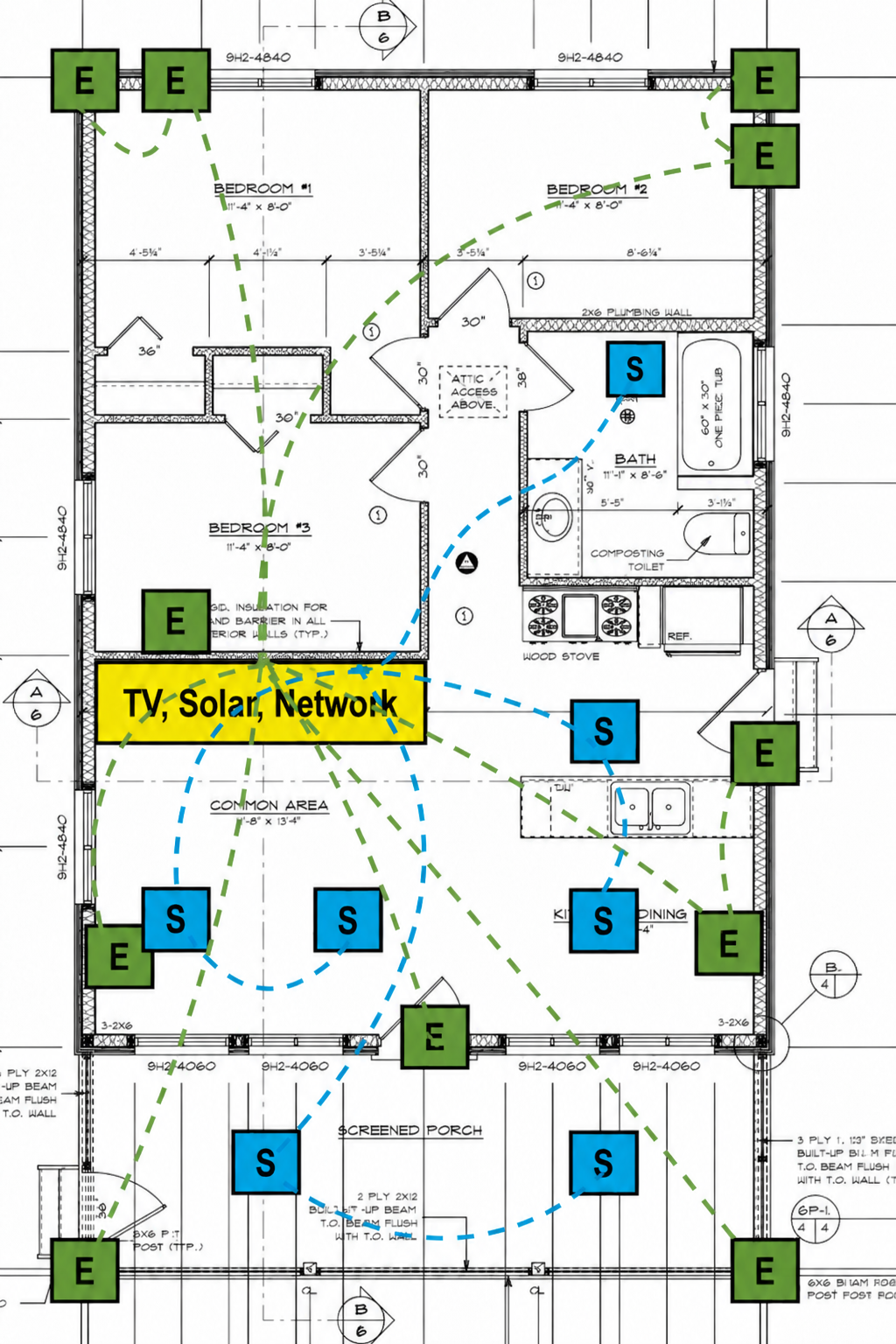
As I thought about what we wanted in this house, I realized there were a few areas where we wanted audio. We wanted surround sound in the living room, music while playing cards in the dining room or cooking in the kitchen, and music on the front screened porch. And perhaps most extravagantly, we wanted to listen to music in the shower.
At the same time, we knew we wanted Ethernet drops in every room. After reading Reddit threads and accounts from others who had built houses, we realized we could also install Ethernet drops at the corners of the house for future cameras. Doing that now would make our lives easier later.
The floor plan above came out of those discussions and was our first step in figuring out what we needed. From there, we just had to work out how to set it all up. This post covers the audio side of the plan.
Goal
Build an extensible music and audio system on a budget, with simple controls. We want to be able to play the same music throughout the house while ensuring that audio from a game console or a movie on the TV takes priority over background music.
Hypothesis
To send audio to each room and control rooms separately, we will use Music Assistant for the music library and room groups. This software routes music to a chosen room or group of rooms and can be controlled via the web or an app.
Passive speakers in the walls or ceilings of each room will play the audio, while a Squeezelite player for each room will let the computer specify which room or rooms to play it in.
Lastly, PipeWire and WirePlumber will route audio through two or three USB audio cards on the host and set priorities (e.g., TV output > Movies + TV Shows > Music for the living room).
Since each USB audio card supports 5.1 or 7.1 audio, we can use two or three stereo channels on each. That means we only need two cards: one for the living room’s surround sound and one for the kitchen and bathroom. The remaining output for the porch will use the host’s built-in audio port.
We’ll also have game consoles connected to the TV, and we’ll want their audio to play through the surround speakers. Luckily, the USB sound cards have an S/PDIF (optical) input, and TVs can often send audio through an S/PDIF output. This means we should be able to capture the TV’s audio and route it back to the living room speakers through software.
| Audio Card | Port | Room |
|---|---|---|
| USB Audio Card 1 | All | Living Room Surround |
| USB Audio Card 2 | Front Stereo | Kitchen |
| USB Audio Card 2 | Rear Stereo | Bathroom |
| USB Audio Card 1 or 2 | S/PDIF Input | Living Room TV -> Living Room |
| Motherboard | Built-in AUX | Porch |
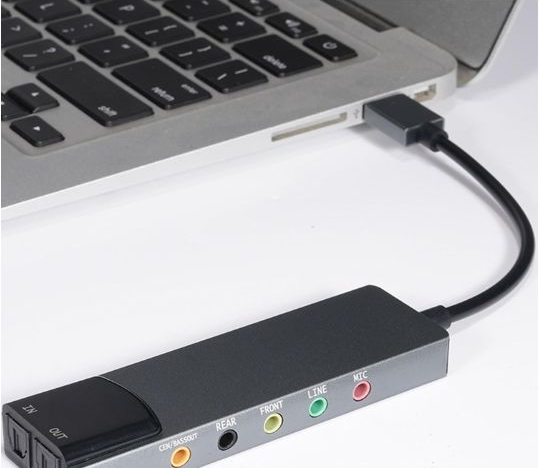
This gives us audio as a line-level AUX signal, which isn’t powerful enough to drive passive speakers. Instead, we need to amplify it. A Class D amplifier converts the line-level AUX signal into a speaker-level signal. We’ll need six of these amps.
Enclosure model
With six amps that all require 12V DC power, we’ll need to get creative. A pack of these amp modules costs $20–30 on AliExpress, so they’re not cost-prohibitive. With a bit of soldering, some fuse blocks, and wiring, we’ve got ourselves a solid setup. The only thing missing is an enclosure.
The model below shows the planned 3D-printed enclosure. It holds the six amplifier boards and power hardware (a fuse block and negative bus bar), with AUX audio connections on one side and speaker wiring on the other.
Recap
- We’ll use Music Assistant to control music in the rooms.
- Squeezelite + PipeWire + WirePlumber let Music Assistant address each audio output separately.
- USB audio cards give us multiple stereo outputs with little overhead, but they provide line-level AUX signals rather than speaker-level outputs.
- A custom setup of six Class D amps converts line-level AUX signals into speaker-level signals.
- The USB audio card has an S/PDIF (optical) input, which we’ll use to route the TV’s audio to the speakers.

Experimentation
We’ve got a solid plan of action, but there are still a lot of unknowns. Can Linux address each AUX port separately? Will we experience audio latency? Will S/PDIF (optical) routing work?
In order to figure this out, I’ll work my way through each step.
1. Basic testing
I have a Mac mini I use for experimentation, but I’ll want to run everything on Debian Linux, like the rest of my homelab.
To start, I set up a virtual machine (VM) running Debian on my Mac. I installed all the required software mentioned above and routed the Mac’s audio interface into the VM.
I made sure that the VM and Music Assistant worked as I’d hoped. They did.
2. Buy and test a USB audio card
I found a cheap USB audio card, bought it, and plugged it into the Mac. I routed the USB interface directly into the VM.
Once the VM could see it, I used a script to test each port one by one. The front and rear AUX ports worked well for stereo audio, but the centre/subwoofer port did not. The centre speaker used the left audio channel on that port, while the subwoofer used the right. The subwoofer channel only played low bass, even when I plugged in normal headphones, making that port unusable for our purposes (outside of actual 5.1 surround sound).
Lastly, I set it up in Music Assistant with Squeezelite and PipeWire. It was visible, with the front and rear ports addressable separately.
3. Test room controls
In Music Assistant, I could now test three individual stereo outputs (front, rear, and the Mac’s audio).
I added a radio station and some local music to test the system. I was able to play different music through each port or the same music through all of them.
One thing I discovered, however, was some variable delay. I was able to account for this with software-based audio syncing, but I am a little concerned about TV and movies, since the audio needs to match the video.
4. [Incomplete] Test TV audio
Up next, I’ll connect the optical output from the TV in my home’s living room to the USB sound card. I’ll route that audio back out through the same card and see whether audio sync, codec, or passthrough issues arise.
Codec (how the audio signal is processed) or passthrough (passing a raw signal through so another device can process it) issues could affect performance.
At this step, I’ll also investigate how to prioritize audio outputs with PipeWire.
5. [Incomplete] Class D amps
I’ll order the amps on AliExpress and set one up with an AUX port and speaker wires. This will let me connect a basic speaker and play audio through it. If this works well, I’ll move on to the enclosure.
I don’t own a 3D printer yet, but the local library lets us print if we pay for the filament. I’ll iterate on the enclosure design and build it to spec.
I’ll also measure gain, heat, noise, power draw, fuse behaviour, and channel separation to ensure the setup is safe once it’s built.
After those tests, I’ll assemble the full amplifier. Once the cabin is closer to completion, I can run a live test on-site.
Risks
- Optical: Test stereo PCM recording first. An optical input does not guarantee surround sound support for devices like a PS5.
- Sync: USB cards can drift. Keep the left and right speakers for each room on the same card. Check for audio/video sync issues when watching TV or movies.
Conversation
Add a note.
Questions, corrections, and useful tangents are welcome. Sign in to join the conversation.